If your recordings show a black screen, appear blank, or contain no footage, the issue is usually related to one of the following: outdated GPU drivers, mismatched graphics devices, or compatibility settings. Follow the steps below to fix the problem.
Take me to...
- Update Your GPU Drivers (Most Common Fix)
- Dual-GPU Systems & Shared Texture Compatibility Mode (SHT)
- Switchable Graphics (Dedicated vs Integrated GPUs)
- Minimum Requirements for Recording
- Windows Ransomware Protection Blocking Recordings
- Compatibility Mode (Use Only on Low-End PCs)
- PCs With Both Intel Quick Sync & NVIDIA NVENC
Update Your GPU Drivers (Most Common Fix)
Outdated or faulty GPU drivers are the most frequent cause of black or empty recordings.
Your GPU’s encoder (NVENC / AMF / Quick Sync) depends on up-to-date drivers to function correctly.
Update your drivers from the manufacturer’s website:
After updating, restart your computer, then try recording again.
Dual-GPU Systems & Shared Texture Compatibility Mode (SHT)
If your PC has both an integrated GPU and a dedicated GPU, Overwolf and the game may run on different devices, resulting in black screens.
Try this first:
Enable Shared Texture Compatibility Mode in Overwolf Settings → Capture → Advanced.
This improves compatibility on systems with multiple GPUs.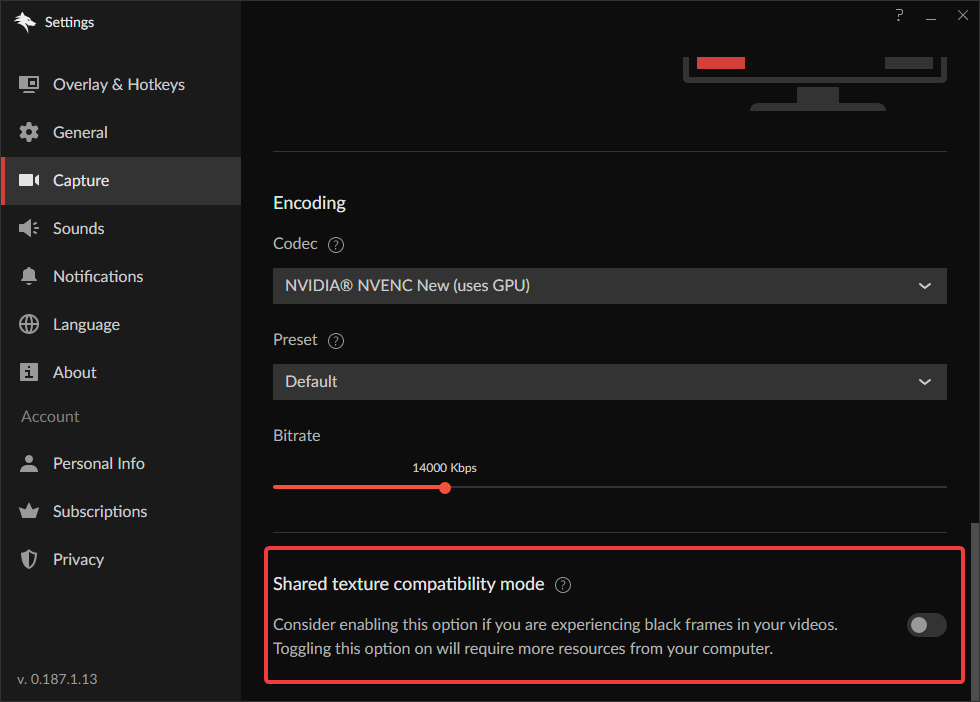
Switchable Graphics (Dedicated vs Integrated GPUs)
Some laptops and desktops use “switchable graphics,” where apps may run on different GPUs.
If your game runs on one GPU and the Overwolf capture engine on another, recordings can fail.
To fix this:
Set Overwolf’s capture engine to run on the same GPU as your game.
Example (NVIDIA Control Panel):
Launch Overwolf
Open the NVIDIA Control Panel
Start any Overwolf video recorder
Go to Manage 3D Settings → Program Settings
Click Add
Select overwolfoverlayhelper.exe (“Overlay”)
Assign it to the same GPU used by your game
Restart Overwolf & your game.
This ensures both game and recorder share the same graphics device.
Minimum Requirements for Recording
To record smoothly with Overwolf apps, your system needs to meet these minimum requirements. Using lower-spec hardware may lead to issues.
Processor (CPU)
Intel: i3 or higher with Intel Quick Sync support. Check supported Intel CPUs here.
AMD: Ryzen processors that include integrated Vega graphics and support the AMF encoder.
Graphics Card (GPU)
NVIDIA: A card that supports NVENC encoding (note: GT/M series may not work well).
AMD: Cards that support the AMF encoder. Check supported AMD GPUs here.
Memory (RAM)
Minimum: 8 GB
Recommended: 16 GB for best performance
For more details and tips on recommended settings, check out: Minimum Recording Requirements & Recommended Settings.
Windows Ransomware Protection Blocking Recordings
If Windows Ransomware Protection is turned on, it may block Overwolf apps from saving recordings.
To check if this is the issue:
- Open Windows Security Settings.
- Temporarily disable Ransomware Protection.
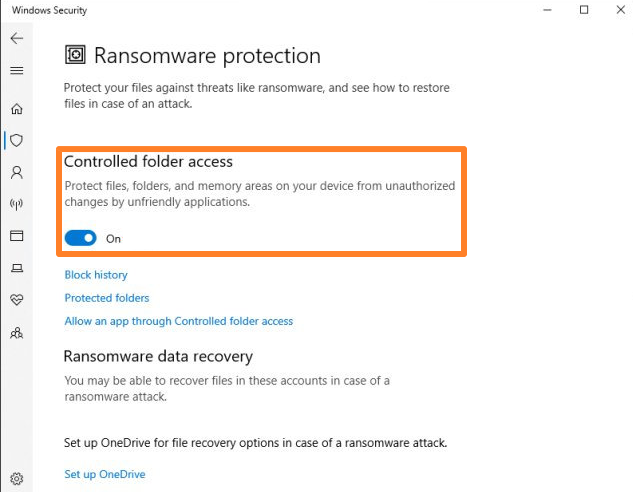
If disabling it fixes the problem, you have two options to prevent it from interfering in the future:
Go to “Protected Folders” and add your media folder as an exception,
or
Move your media folder to a location that is not protected.
If you're using Outplayed, you can follow This Guide to change the media folder.
Compatibility Mode (Use Only on Low-End PCs)
Overwolf’s “Compatibility Mode” forces the recorder to use shared memory instead of shared texture. This can help on lower-end systems but may cause:
FPS drops
Black screen recordings
Poor performance on high-end systems
If you have a strong CPU/GPU, disable Compatibility Mode.
PCs With Both Intel Quick Sync & NVIDIA NVENC
Systems with both encoding technologies may confuse the recorder if:
The game runs on the NVIDIA GPU, and
Overwolf runs on the Intel iGPU
This mismatch results in black recordings.
Fix it by making sure:
Your GPU drivers are up-to-date, and
Overwolf & your game use the same GPU (see step 3 above)
If none of these solutions help, please open a support ticket.